
Summary
I mapped out all of my tech and their connections, uncovering some chokepoints and learning about some new technical developments in the process.
Views my own. Discussion ≠ endorsement. Do try this at home.
Diagram by the author
~1,800 words
Published:
Last modified:
I mapped out all of my tech and their connections, uncovering some chokepoints and learning about some new technical developments in the process.
Annoyed at inconsistent device charging and data transfer times, I decided I should inventory my USB cables. This, as is my wont, then bloomed into a comprehensive documenting of my entire personal technical architecture. In the process, I found a few interesting things.
The diagrams included in this post will remain static once it is published, but if you want to see how my architecture continues to change, check out the /uses page.
This project was partly inspired by the live network diagram displayed whenever I log into my Wi-Fi router (which I’ve had to do several times recently, trying to diagnose connection issues):
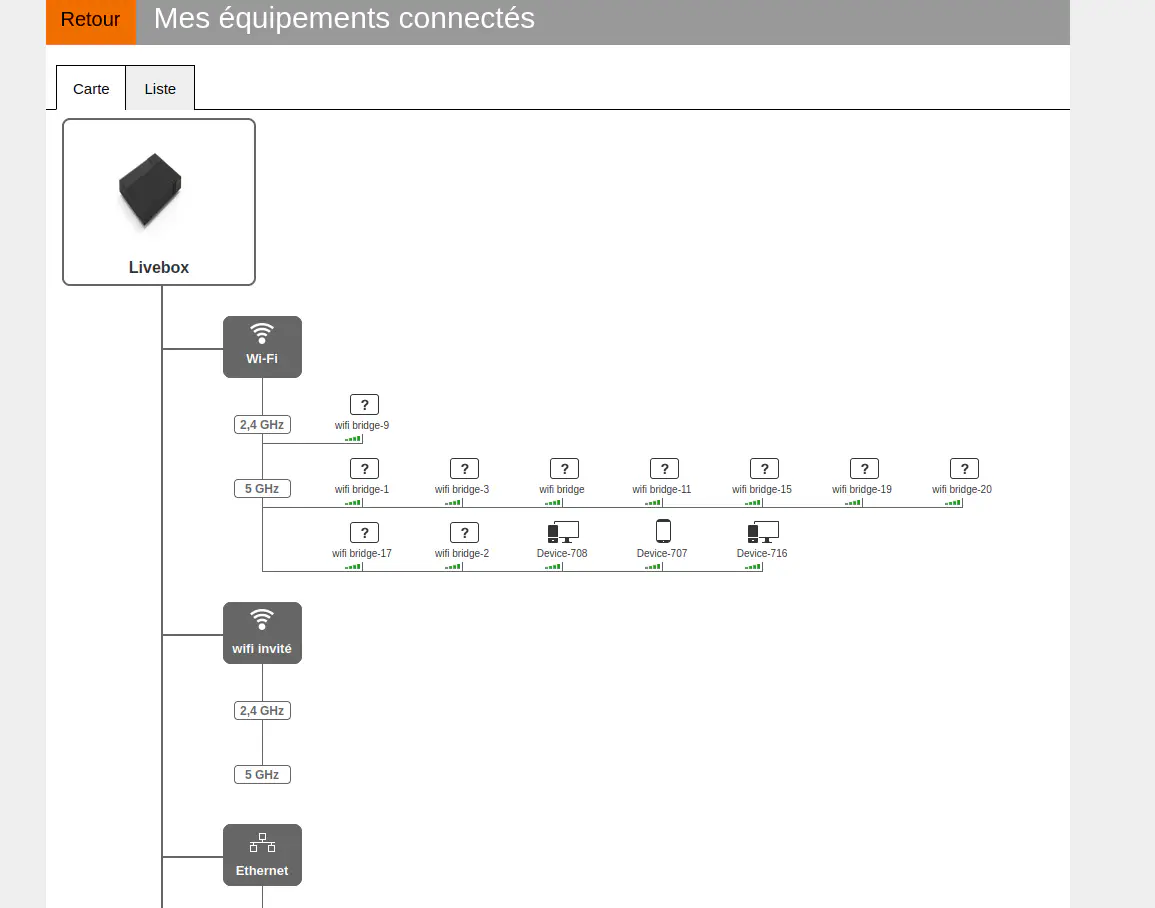
Screenshot by the author
As such, I started with those devices. I began by collecting user manuals for my laptops, desktop motherboard, etc., as these effectively form the core of my technical system: everything thing generally serves an enabling purpose for these primary devices.
From these, I followed the various connecting cables to peripherals (e.g., my mouse and Wi-Fi router), tracked down their user manuals and documented their ports.
Lastly, I went through all of the independent devices I could think of (e.g., USB flash drives or my electric toothbrush), along with all of my remaining loose cables.
I initially tried to draw my diagrams by hand, but pretty quickly decided to use a digital tool. Mermaid architecture diagrams are far too limited for my purposes, and trying to re-learn TikZ several years after I last used it seemed overkill. In the end, I settled on the online tool draw.io, which was very easy to pick up and offered lots of options for saving the files, including (most importantly) local file and browser storage.
And so, I gradually assembled the initial draft of my diagram:

Diagram by the author
Once I had captured most things, I started to rethinking how I was grouping the different blocks, as well as how I was representing ports, connectors and cables. This last one is important, because if I want (for example) USB 3.2 Gen 2 speeds end-to-end, I need to ensure that:
For wrapping my head around the nightmare that is the USB 3.x naming conventions, this article was invaluable.
I also introduced colour-coding, and adjusted the thickness of the various connectors depending on how advanced their protocols were (e.g., USB 2.0 conncetions are 1px wide, whilst USB4 connections are 4px wide). This helps me to see, at a glance, where I have connector mismatches and bottlenecks, which was ultimately the purpose of this whole exercise.
And so, after some tidying-up (and with the addition of some extra devices I had missed the first time through), I had the following:

Diagram by the author
When I rebuilt this site, I noted how technical standards had moved on without me whilst I hadn’t been paying attention. The same was true of this exercise.
The last time I had properly paid attention to USB, I think USB 3.0 was the only game in town—if your port was blue, you were all good. I was vaguely aware that subsequent updates had been released, and I knew about the infamously absurd naming conventions adopted by the USB-IF for these subsequent revisions, but I had never really looked into them in any depth. But during this exercise, I found that not only did USB 3.0 no longer exist (having been rebranded first to USB 3.1 Gen 1, and then to USB 3.2 Gen 2), but that there was now even a USB4.
Not only that, but in the process of documenting my architecture I also discovered that Wi-Fi, Ethernet, Bluetooth and DisplayPort all have their own versioning schemes (though, again, I was vaguely aware beforehand that there were various 802.11 standards for the former, but not what they actually signified). The whole exercise was actually very informative in terms of catching me up on a lot of technological advancements that have taken place over the last decade or so.
Also, I learnt how to test USB speeds in GNU/Linux, using lsusb -tv:1
❯ lsusb -tv
/:  Bus 001.Port 001: Dev 001, Class=root_hub, Driver=xhci_hcd/10p, 480M
    ID 1d6b:0002 Linux Foundation 2.0 root hub
    |__ Port 002: Dev 002, If 0, Class=Hub, Driver=hub/4p, 480M
        ID 05e3:0608 Genesys Logic, Inc. Hub
    |__ Port 008: Dev 003, If 0, Class=Human Interface Device, Driver=usbhid, 12M
        ID 1462:7c91 Micro Star International
    |__ Port 009: Dev 004, If 0, Class=Wireless, Driver=btusb, 480M
        ID 0e8d:0608 MediaTek Inc.
    |__ Port 009: Dev 004, If 1, Class=Wireless, Driver=btusb, 480M
        ID 0e8d:0608 MediaTek Inc.
    |__ Port 009: Dev 004, If 2, Class=Wireless, Driver=btusb, 480M
        ID 0e8d:0608 MediaTek Inc.
/:  Bus 002.Port 001: Dev 001, Class=root_hub, Driver=xhci_hcd/4p, 10000M
    ID 1d6b:0003 Linux Foundation 3.0 root hub
/:  Bus 003.Port 001: Dev 001, Class=root_hub, Driver=xhci_hcd/4p, 480M
    ID 1d6b:0002 Linux Foundation 2.0 root hub
    |__ Port 002: Dev 026, If 0, Class=Hub, Driver=hub/4p, 480M
        ID 17ef:1025 Lenovo
        |__ Port 002: Dev 028, If 0, Class=Billboard, Driver=[none], 12M
            ID 17ef:3060 Lenovo ThinkPad Dock
        |__ Port 002: Dev 028, If 1, Class=Human Interface Device, Driver=usbhid, 12M
            ID 17ef:3060 Lenovo ThinkPad Dock
        |__ Port 004: Dev 029, If 0, Class=Hub, Driver=hub/4p, 480M
            ID 17ef:1026 Lenovo
            |__ Port 002: Dev 030, If 0, Class=Hub, Driver=hub/3p, 480M
                ID 17ef:1021 Lenovo ThinkPad Dock Hub [Cypress HX2VL]
                |__ Port 001: Dev 031, If 0, Class=Human Interface Device, Driver=usbhid, 1.5M
                    ID 04d9:4545 Holtek Semiconductor, Inc. Keyboard [Diatec Majestouch 2 Tenkeyless]
                |__ Port 001: Dev 031, If 1, Class=Human Interface Device, Driver=usbhid, 1.5M
                    ID 04d9:4545 Holtek Semiconductor, Inc. Keyboard [Diatec Majestouch 2 Tenkeyless]
                |__ Port 002: Dev 032, If 0, Class=Video, Driver=uvcvideo, 480M
                    ID 046d:08e5 Logitech, Inc. C920 PRO HD Webcam
                |__ Port 002: Dev 032, If 1, Class=Video, Driver=uvcvideo, 480M
                    ID 046d:08e5 Logitech, Inc. C920 PRO HD Webcam
                |__ Port 002: Dev 032, If 2, Class=Audio, Driver=snd-usb-audio, 480M
                    ID 046d:08e5 Logitech, Inc. C920 PRO HD Webcam
                |__ Port 002: Dev 032, If 3, Class=Audio, Driver=snd-usb-audio, 480M
                    ID 046d:08e5 Logitech, Inc. C920 PRO HD Webcam
                |__ Port 003: Dev 044, If 0, Class=Audio, Driver=snd-usb-audio, 12M
                    ID 17ef:3063 Lenovo ThinkPad Dock Audio
                |__ Port 003: Dev 044, If 1, Class=Audio, Driver=snd-usb-audio, 12M
                    ID 17ef:3063 Lenovo ThinkPad Dock Audio
                |__ Port 003: Dev 044, If 2, Class=Audio, Driver=snd-usb-audio, 12M
                    ID 17ef:3063 Lenovo ThinkPad Dock Audio
                |__ Port 003: Dev 044, If 3, Class=Human Interface Device, Driver=usbhid, 12M
                    ID 17ef:3063 Lenovo ThinkPad Dock Audio
/:  Bus 004.Port 001: Dev 001, Class=root_hub, Driver=xhci_hcd/4p, 10000M
    ID 1d6b:0003 Linux Foundation 3.0 root hub
    |__ Port 002: Dev 013, If 0, Class=Hub, Driver=hub/4p, 5000M
        ID 17ef:101f Lenovo
        |__ Port 001: Dev 015, If 0, Class=Vendor Specific Class, Driver=r8152, 5000M
            ID 17ef:3062 Lenovo ThinkPad Dock Ethernet [Realtek RTL8153B]
        |__ Port 004: Dev 014, If 0, Class=Hub, Driver=hub/4p, 5000M
            ID 17ef:1020 Lenovo ThinkPad Dock Hub
I’ve mentioned before about being a USB-C maximalist
, but upon learning that the latest USB specifications (both USB 3.2 Gen 2×2 and USB4) abandoned USB-A backwards-compatibility, I decided it was finally time to take that thinking towards its logical conclusion: USB-C everywhere. This necessitated replacing several devices, from my power bank and head torch to my external HDD and travel adapter.
I also upgraded my storage devices and threw away some of the very small ones that I was unlikely to ever use. I did consider keeping my 8GB microSD card as a swallowable in case of emergency
option, but I’ve not had cause to eat any cards yet so I don’t really expect to have to in future either. Plus, on the topic of storage devices, I discovered a whole new socket (M.2) on my motherboard that I knew nothing about, for which I ordered a new SSD.
I bought myself a couple of USB 3.2 Gen 2×2 cables (and a USB4 one, because why not?) and shoved all of my USB 2.0 cables (now Sharpied-up as such) in a drawer. One thing I learnt during this is that pretty much every free cable that comes packaged alongside some piece of tech.—a phone, for example—actually only supports USB 2.0!
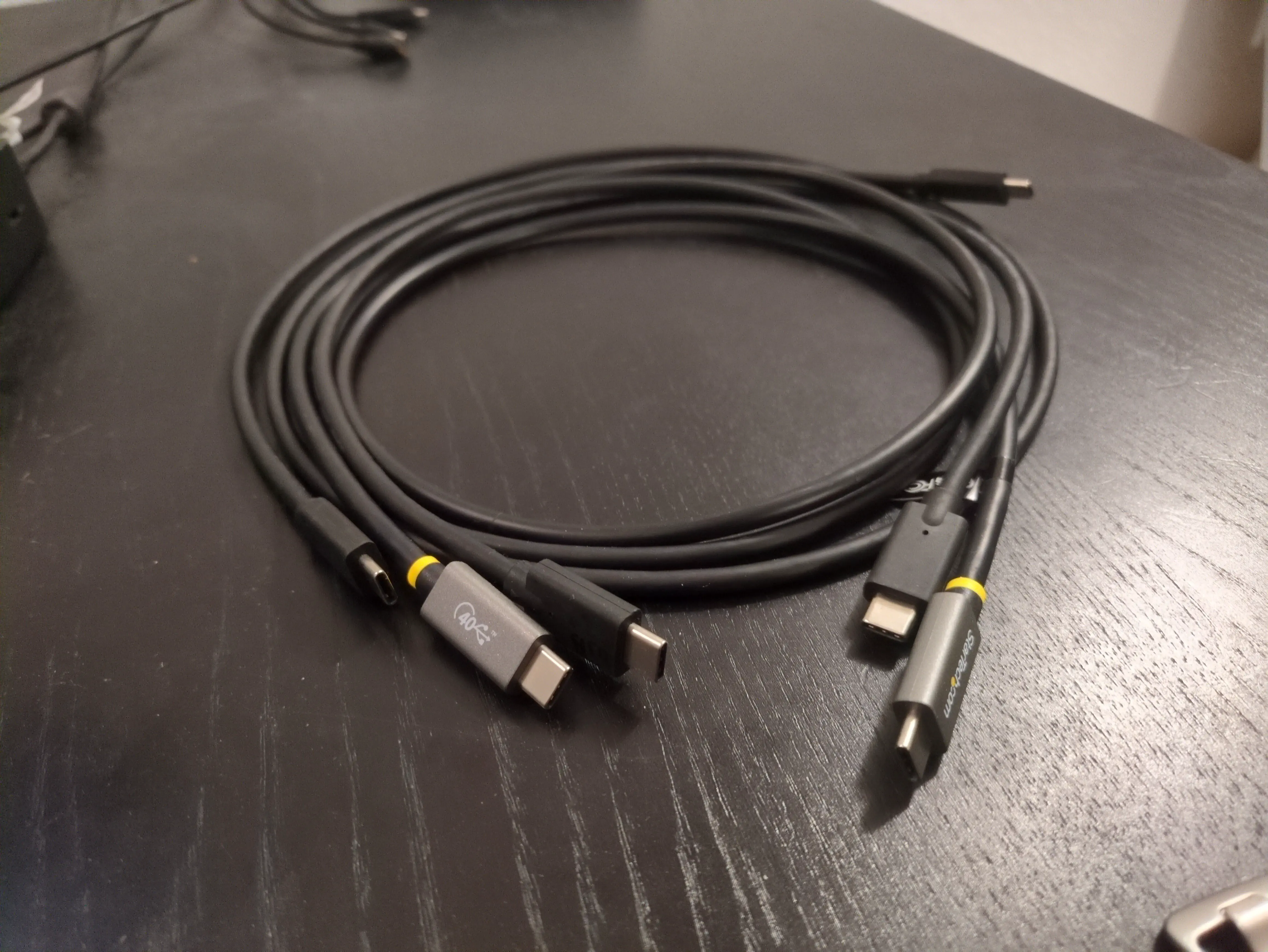
My lovely new cables, where I can keep an eye on them
Photo by the author

My horrible old cables in a drawer where they belong
Photo by the author
However, as far as I can tell, USB 3.2 Gen 2×2 doesn’t have much of a presence in consumer electronics; there are no flash drives using the specification due to technical limitations, no external HDDs or SSDs and it seems like mobile phones have largely skipped it in favour of the newer USB4/Thunderbolt (which is a whole other kettle of fish which I shall not get into here).2
In short, USB 3.2 Gen 2 is about the max data transfer throughput that my hardware can currently support (MacBook notwithstanding). My other big bottleneck is Internet connectivity, but as live in a shared apartment, the choice of router is only ¼ up to me, and that determines both the Ethernet and Wi-Fi options available to me.
However, after some improvements and recabling, my new architecture looks like this:

Diagram by the author
The biggest bottleneck left is the front-panel of my computer case (which is still the original, massive Coolermaster Sniper Storm that I bought when I first built the thing, way back in 2011), but I connect everything to the rear panel so that’s no problem. Plus, all of my cables and adapters are now nicely future-proofed for the foreseeable.
This command shows all of your device’s current USB connections in a tree view, along with their speeds at the end of each line:
Also, whilst the cables I bought were sold as 2×2, they are actually labelled as USB4; without any USB4 devices to attach them to, I can’t actually test them:
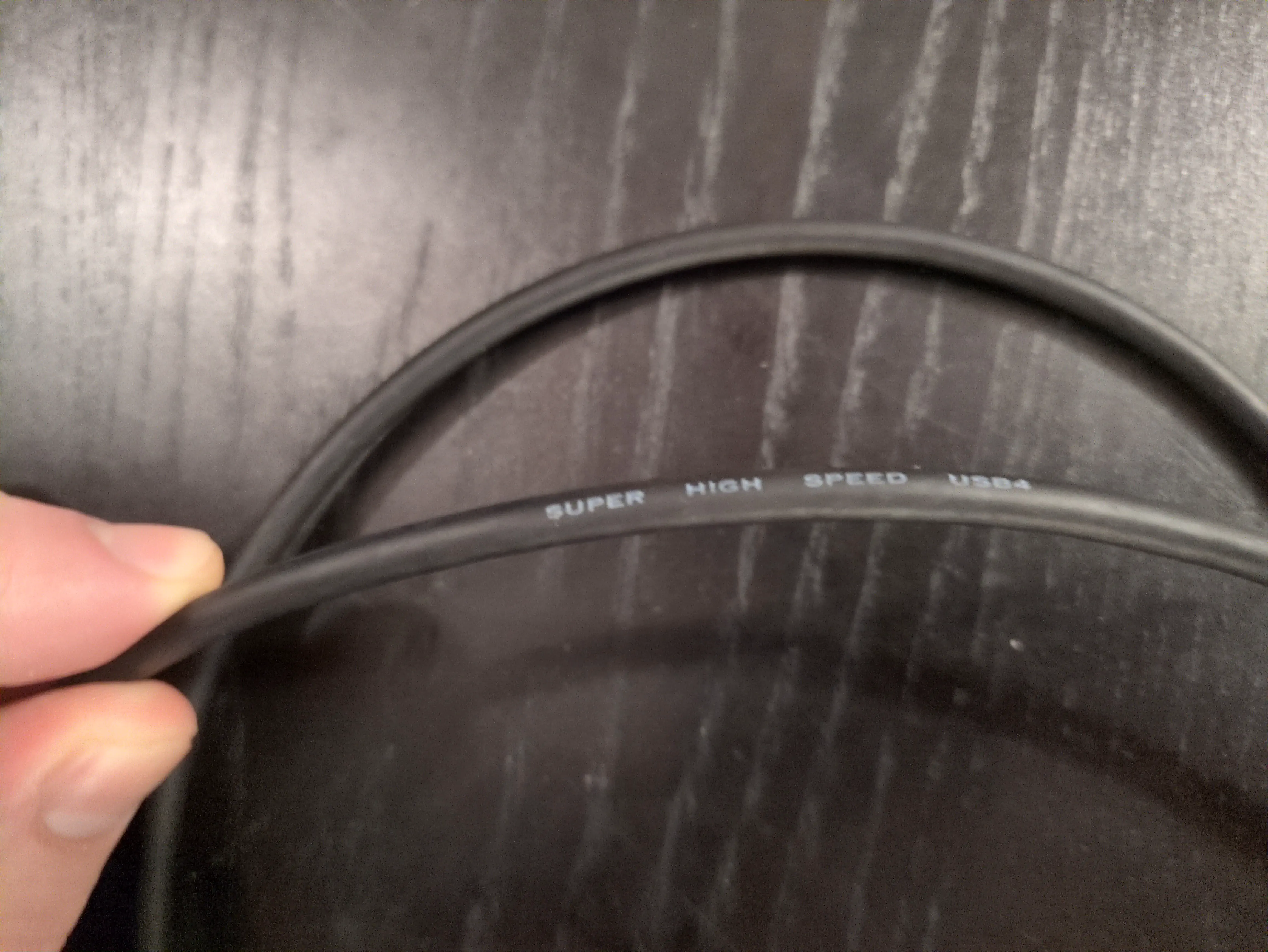
Photo by the author
Either way, they’re definitely not going to be my bottleneck any time soon. ↩︎